

Search
Keeping your profile up to date in TitanWBL ensures that your information is accurate and helps administrators manage user accounts efficiently. Follow these steps to update your profile details.
Step 1: Log In to TitanWBL
Visit the TitanWBL login page and enter your username and password to access your account.
Step 2: Navigate to Your Profile
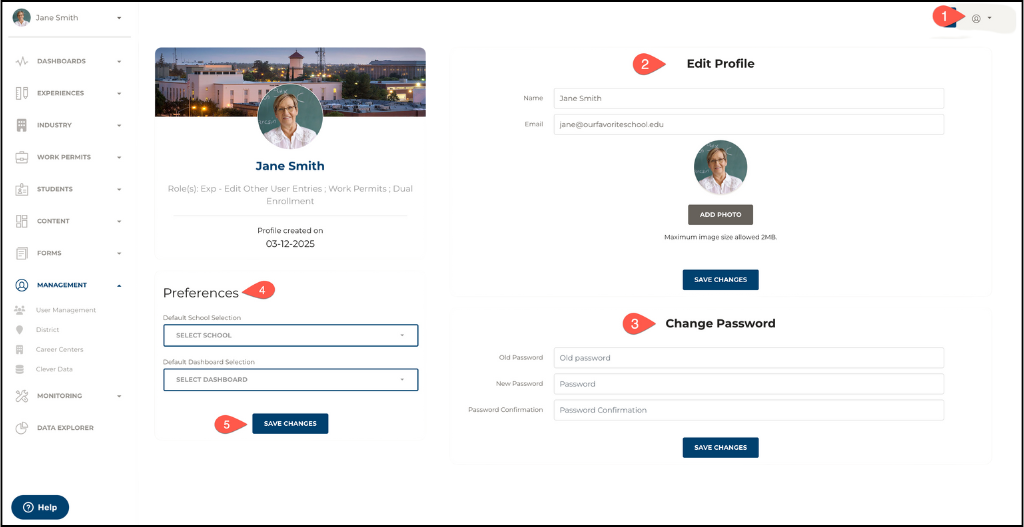
Once logged in, click in the profile icon in the upper right corner. Click My Profile to access your profile settings.
Step 3: Update Your Information
You can update the following details:
- Name: Ensure your full name is correct.
- Email Address: Update your email if needed (may require verification).
- Profile Photo: If you wish to change your profile photo, click on “Add Photo” button.
- Password: If you wish to change your password, type in information as directed.
- Preferences: You can change the default school and dashboard that you’ll see upon logging in.
Step 4: Save Your Changes
After making the necessary updates, click Save Changes to apply them.