
In this section, you will learn how to update your profile in TitanWBL. Follow these steps to update your information correctly.
Step 1: Go to your profile page.
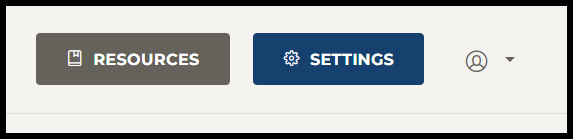
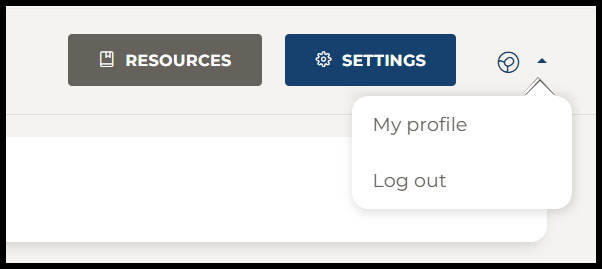
From your dashboard, just click on the profile icon and click on my profile.
Step 2: Edit your profile page.
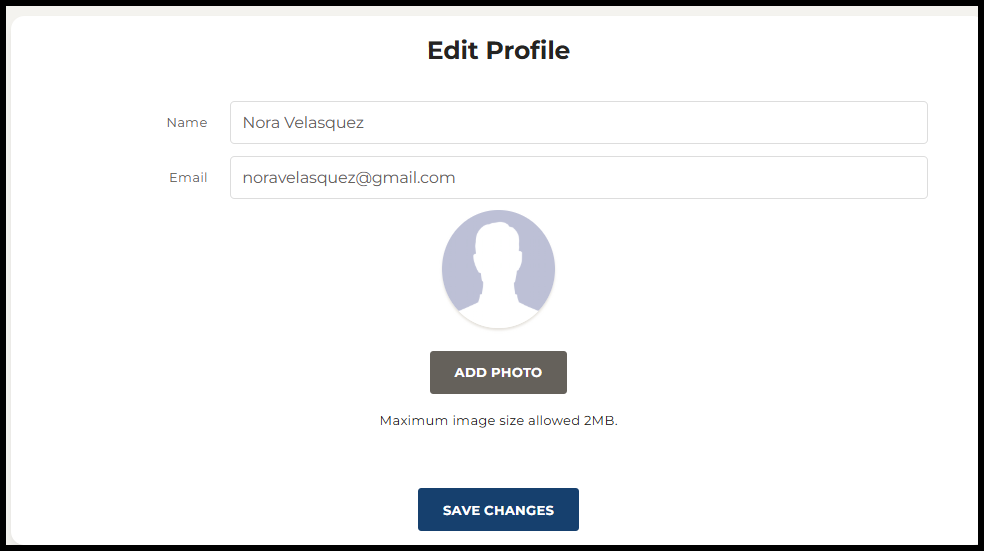
From your profile page, you can edit your name and email address. You can add a profile picture by clicking ADD PHOTO. When you are finished editing your profile, select SAVE CHANGES.
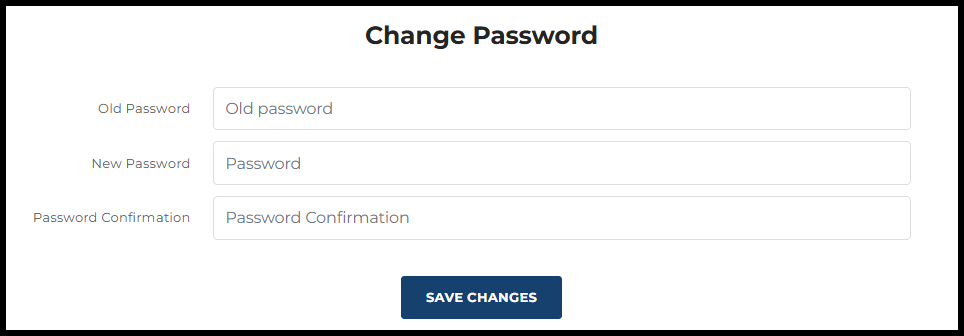
Step 3: Change your password.
To change your password, simply enter your old password and type in a new password. Type in your new password again to confirm. Select Save changes.
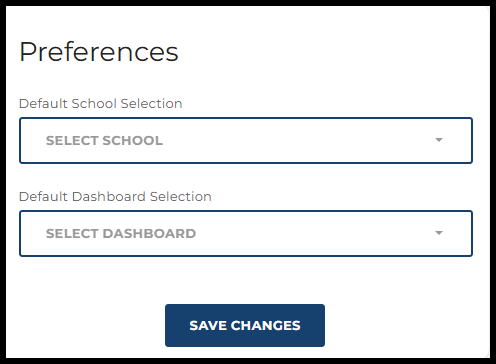
Step 4: Choose preferences.
Finally, you can set your default school and dashboard, ensuring they are automatically selected each time you log in. And don’t forget to click save changes to save your preferences.
***If you have any issues with updating your profile or need support contact your TitanWBL administrator.***