
Search
Logging an industry experience in TitanWBL is easy and ensures accurate reporting of work-based learning activities. Follow these steps to log the industry experience.
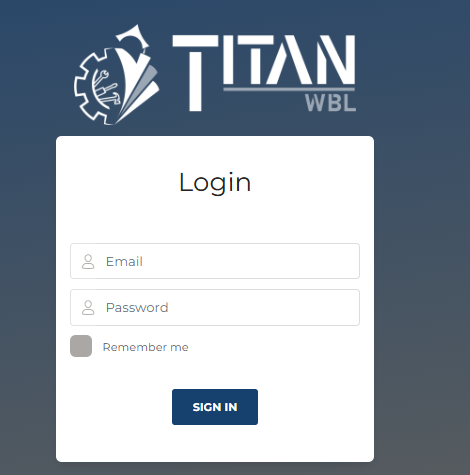
Step 1: Log In to TitanWBL
Navigate to the TitanWBL login page and enter your credentials to access your account.
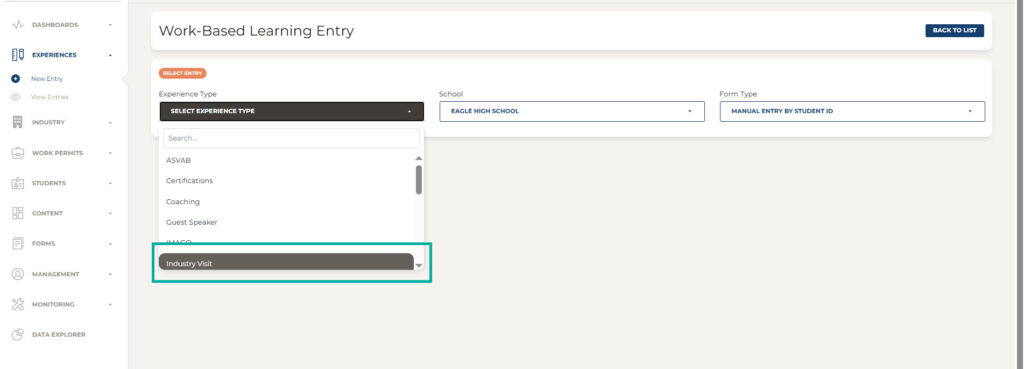
Step 2: Go to the Experience Section.
Once logged in, locate the Experiences menu and choose New Entry.

Step 3: Select the Experience Type from the dropdown menu.
Select “Industry Visit” as the Experience Type, choose the School and CLEVER as the form type.
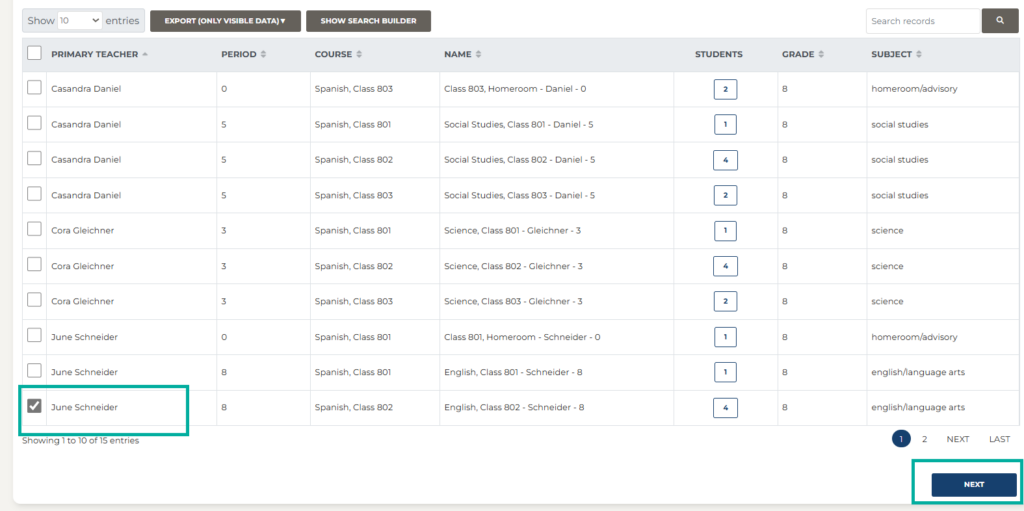
Step 4: Select the correct Course and Teacher.
Select the roster for the teacher whose student you are logging. Click “Next”.
Step 5: Select the Student(s).
Select the student or students whose certification experience you are logging. Click “Next”.
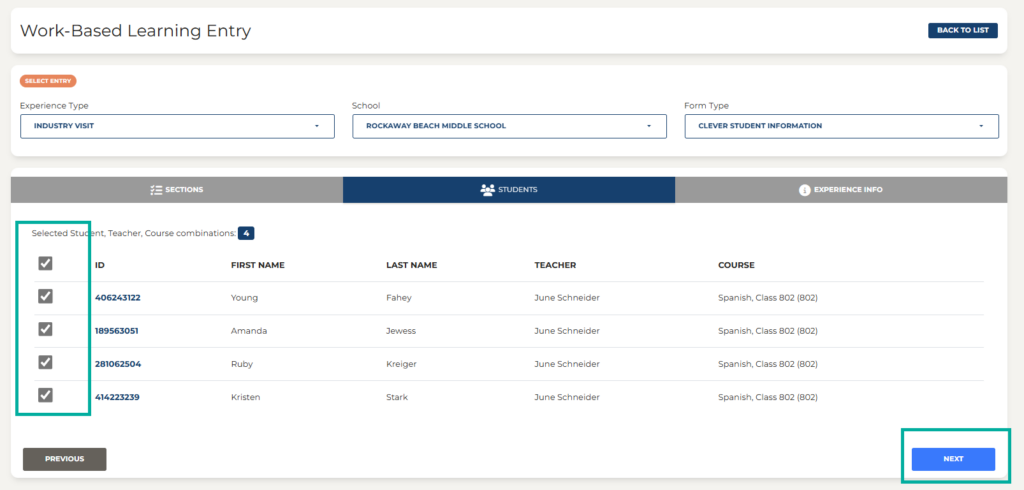
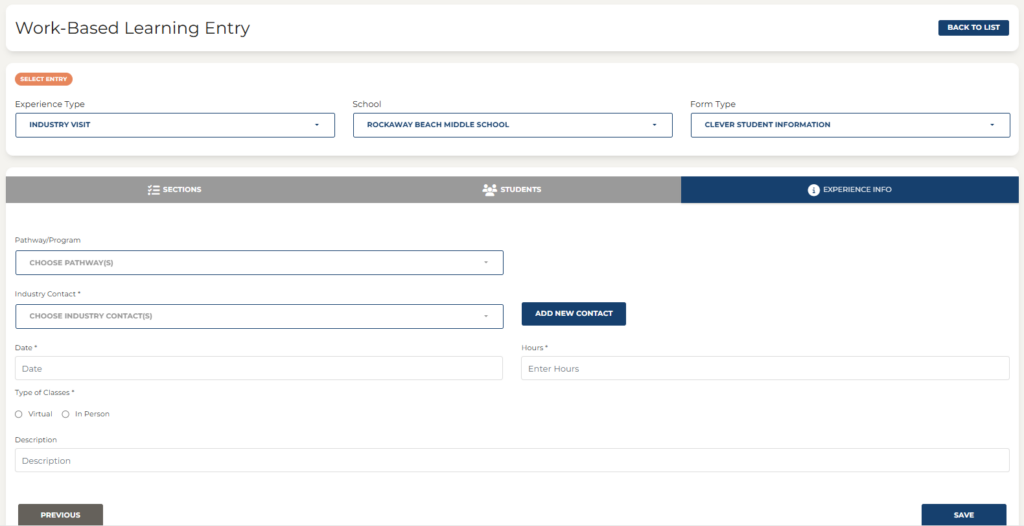
Step 6: Enter the detailed information for the industry visit.
Fill out the required fields*, including:
- Industry Contact
- Date
- Type of Classes
- Once you have entered all the required details, click Save to log the certification experience.
Troubleshooting Tips:
- Ensure all required fields are completed before submitting. Any field with an “*” next to it is required.
- If information is missing a red message will pop up alerting you to complete the missing details.
- Contact TitanWBL Administrator if you are experiencing any issues while logging industry visit experiences.