
Search
Locating an experience in TitanWBL is easy and allows you to view experiences, track progress, update details, and ensure proper documentation of work-based learning activities. Follow these steps to properly locate an experience.
Step 1: Log In to TitanWBL.
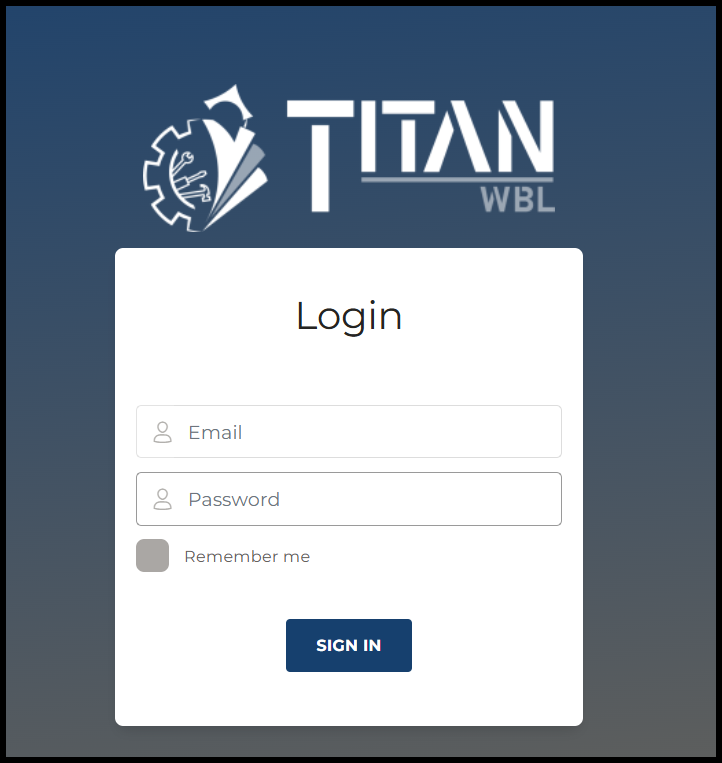
Navigate to the TitanWBL login page and enter your credentials to access your account.
Step 2: Go to the Experience Section.
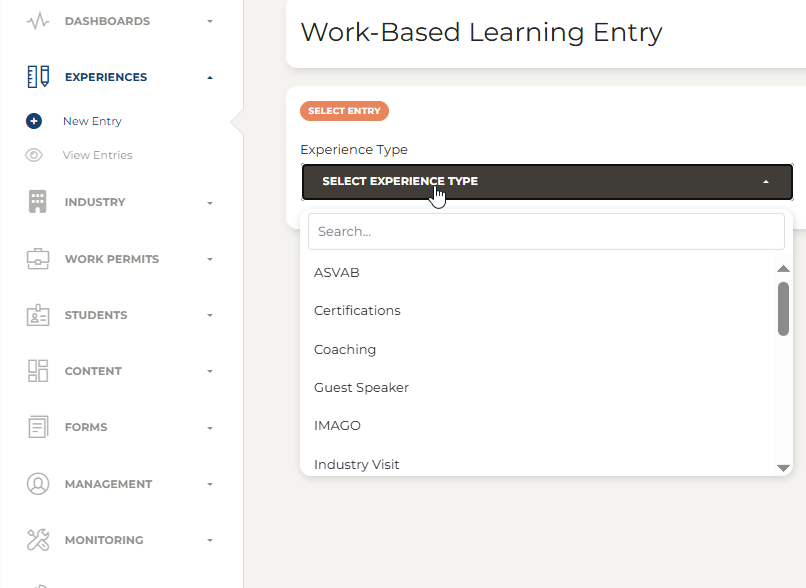
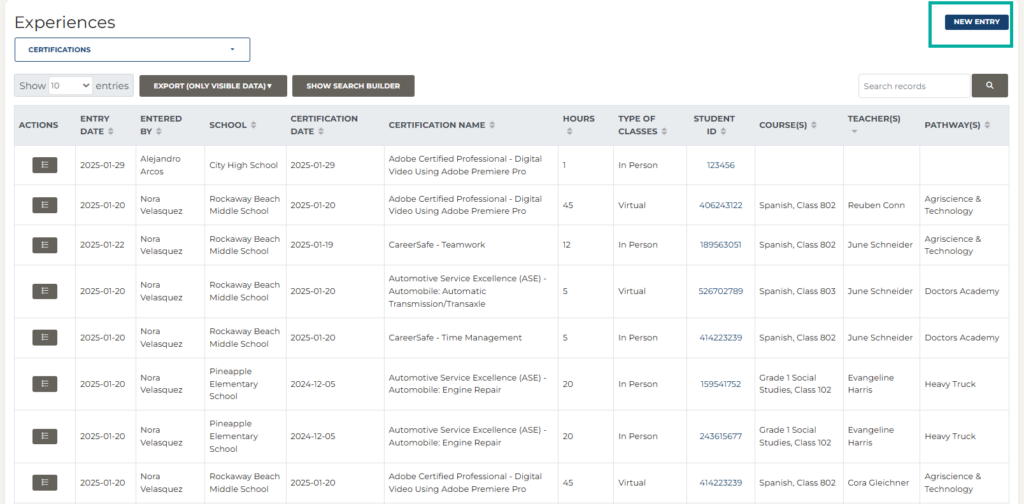
Once logged in, locate the Experiences menu and select “View Entries” to begin.

Step 3: Select the Experience Type from the dropdown menu.
Select an experience. For example, we choose “Certifications” as the Experience Type.
Step 4: Complete the action, if necessary.
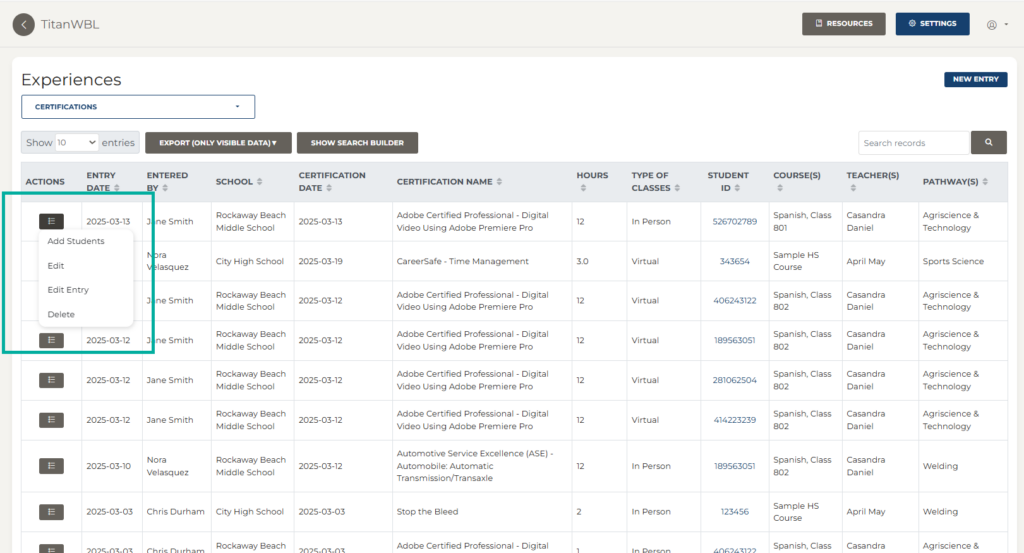
From the actions column, you can:
- Add students
- Edit
- Edit Entry
- Delete
Step 5: Add new entry.
From the Experience table, you can also add new entries.
Troubleshooting Tips:
- Contact a TitanWBL administrator if you are experiencing any issues locating an experience.